The question I hear most often when I'm teaching AI workshops isn't "how does this work?" It's "where do I even start?" There are dozens of AI tools competing for attention right now, each one promising to transform how you work. For a nonprofit director already managing too many responsibilities, that noise is more paralyzing than helpful. This guide cuts through it.
You Don't Need to Learn Everything at Once
The single most important thing I tell people at the start of every workshop is this: pick one tool, use it for two weeks, and get comfortable before you add anything else. AI tools are not software you install and configure once. They're more like a new communication skill. The learning curve is gentle, but it does require some repetition before things start to click.
With that in mind, here are the four tools worth knowing about right now, along with an honest assessment of who each one is best suited for.
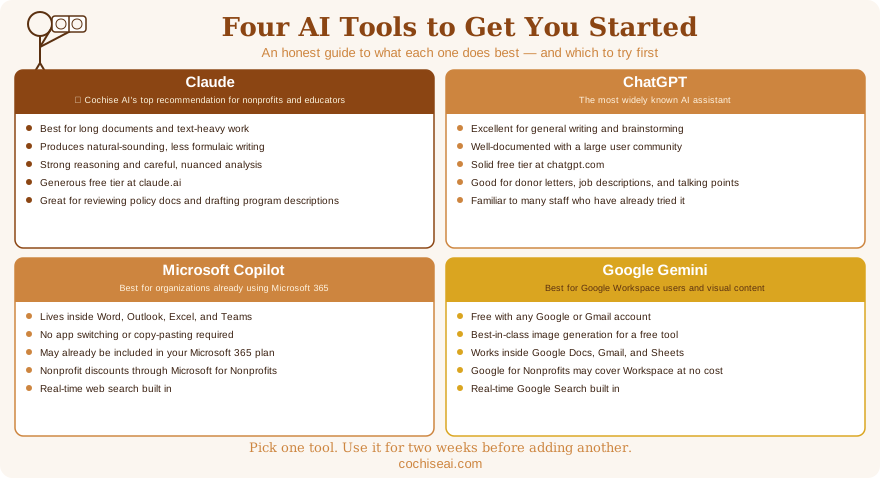
Claude: The Best Choice for Nonprofits and Educators
Claude, made by Anthropic, is my personal first recommendation for organizations that work with a lot of text. It handles long documents exceptionally well: paste in a 40-page strategic plan and ask it to summarize the key themes, or drop in a grant RFP and ask what questions you need to answer. It also tends to produce writing that sounds more natural and less formulaic than other tools.
For nonprofits and educators, Claude is particularly useful for processing meeting notes into action items, reviewing policy documents, drafting program descriptions, and helping refine writing that already exists. It's available at claude.ai, and the free tier is generous enough for regular use.
ChatGPT: The One Most People Have Heard Of
ChatGPT, made by OpenAI, is the tool that put AI assistants on the map. It's widely discussed, well-documented, and has a free tier that covers most basic needs. You can use it to draft emails, write social media posts, summarize documents, brainstorm ideas, and answer questions in plain conversational language.
For a nonprofit, practical uses include drafting donor thank-you letters, writing job descriptions, preparing talking points for board presentations, and creating first drafts of grant narratives. ChatGPT won't write your final grant proposal for you, but it can give you a solid starting draft that you then refine with your own voice and program-specific detail. For a step-by-step walkthrough of using AI across the entire grant writing process, see our Grant Writing with AI guide.
The free version (at chatgpt.com) is enough to get started. A paid subscription adds access to newer models and features, but I'd recommend starting free and upgrading only if you run into limits.
A note: I cancelled my OpenAI subscription in March 2026 and no longer recommend ChatGPT as a primary tool. My reasons are in the post OpenAI Has Forgotten What It Was Built For. ChatGPT remains capable and I've included it here because it's widely used, but Claude is my recommendation for nonprofits and educators.
Microsoft Copilot: Already Inside Your Tools
If your organization uses Microsoft 365, you may already have access to Copilot at no additional cost. Unlike ChatGPT and Claude, which you visit in a web browser, Copilot lives inside Word, Outlook, Excel, and Teams. That integration matters more than it might sound.
Being able to highlight a paragraph in Word and ask Copilot to shorten it, or to open Outlook and ask it to draft a reply to a donor inquiry, removes a step that turns out to be a real barrier for many people. You don't have to switch contexts, copy text, or learn a new interface. It's just there, inside the tools you're already using.
If your organization is on Microsoft 365, check your current subscription level. Business Standard and above include Copilot features. If you're on a nonprofit-discounted Microsoft plan, the pricing may be more accessible than you expect.
Google Gemini: The Best Free Option for Visual Work
Gemini, Google's AI assistant, is available free at gemini.google.com to anyone with a Google account. Since most nonprofits already use Gmail or Google Workspace, there's nothing new to sign up for. You log in with the same account you already have.
For general writing and research tasks, Gemini performs well alongside Claude and ChatGPT. Where it genuinely stands out is image generation. Gemini's image tools, powered by Google's Imagen model, are among the best available in any free AI product. If you need to create graphics for a newsletter, social media posts, a fundraising flyer, or a donor presentation, Gemini can produce professional-looking images from a plain-language description in seconds. For organizations that can't afford a graphic designer for every project, that's a meaningful capability.
If your organization uses Google Workspace (the paid version of Gmail and Docs), Gemini is also available directly inside Google Docs, Sheets, and Gmail, in a similar way to how Copilot works inside Microsoft 365. Even without that plan, the free version at gemini.google.com covers most needs for a small nonprofit. And if your organization qualifies for the Google for Nonprofits program, you may be able to get Google Workspace, including Gemini integration, at no cost.
What These Tools Have in Common
All four tools share one fundamental characteristic: they respond to what you ask them. The quality of what you get out depends directly on the quality of what you put in. Vague prompts produce vague results. Specific, context-rich prompts produce something genuinely useful.
This is not a steep learning curve. It's more like learning that a good email gets a better response than a one-line text. If you want to go deeper on prompting technique, I put together a free guide on the 4-D Prompting Method that walks through a simple four-step method that works across all of these tools.
A Realistic First Week
Here's what I suggest for anyone just starting out. Pick one tool, create a free account, and spend the first week doing tasks you already have on your plate. Don't use it for anything critical yet. Use it to draft an email you'd have written anyway, summarize a report you've already read, or brainstorm ideas for an event you're already planning.
The goal that first week isn't to be impressed. It's to get comfortable with the rhythm of how these tools work, how to refine a response that isn't quite right, and what kinds of tasks actually save you time versus which ones aren't worth the effort.
After two weeks of that, most people find that three or four specific use cases have emerged where AI is genuinely saving them time. That's when it starts to feel like a real tool rather than a novelty.
Where to Go from Here
If you'd like a guided introduction rather than exploring on your own, that's exactly what Cochise AI offers. I work with nonprofits and schools in Cochise County to help staff get comfortable with AI tools, develop an approach that fits their organization's specific workflows, and avoid the common mistakes that lead to frustration rather than results.
The contact form on this site is the easiest way to start a conversation. There's no obligation and no sales pitch. Just tell me a little about your organization and what you're hoping AI might help with, and we'll go from there.